 SDeck
SDeckYour spare iPhone,
now buttons for your Mac.
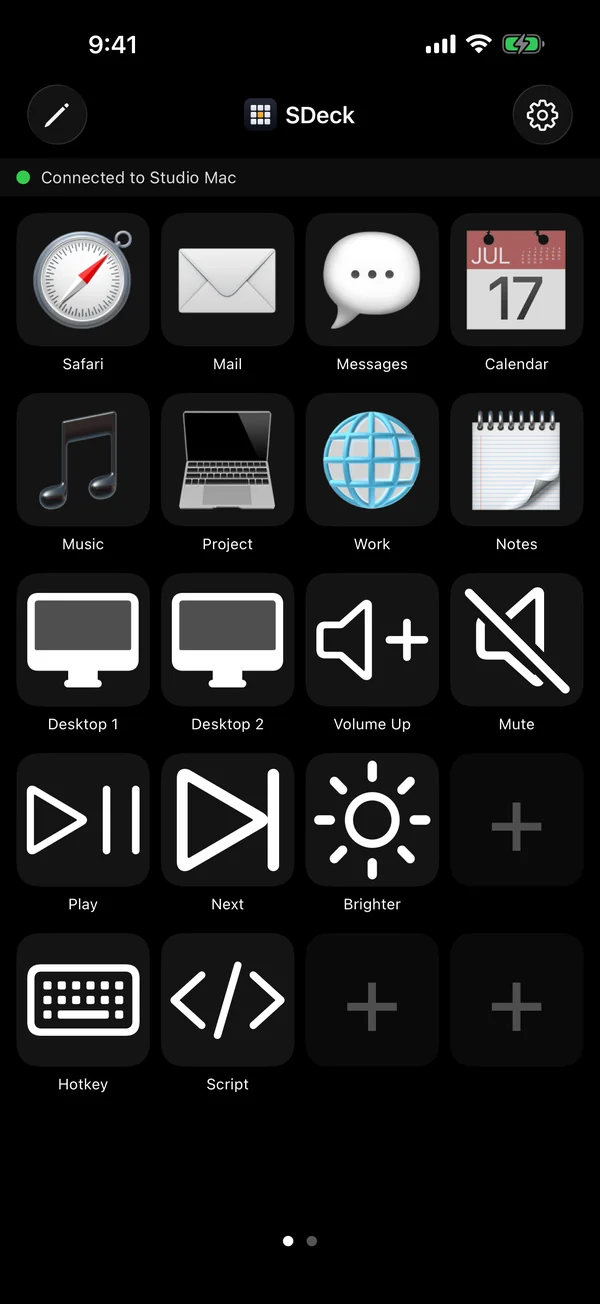
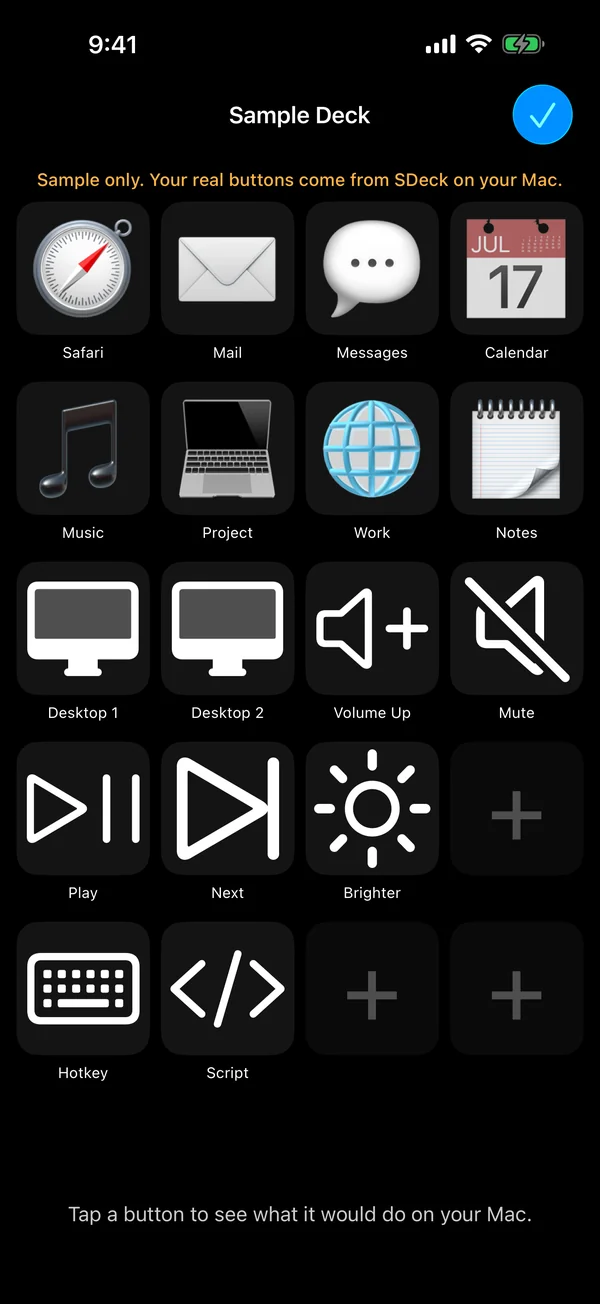
SDeck turns an old iPhone or iPad into an always-on panel of big, glanceable buttons. One tap opens an app, jumps to a project, switches desktops, controls music, or sends a hotkey.
Mac app: macOS 14 Sonoma or later · Apple silicon & Intel · Notarized by Apple
On an iPhone? Tap “Download for Mac” to send the link to your Mac.
Set up in about a minute.
Two free apps that find each other on your Wi-Fi. No account, no cables, no configuration files.
Install on both
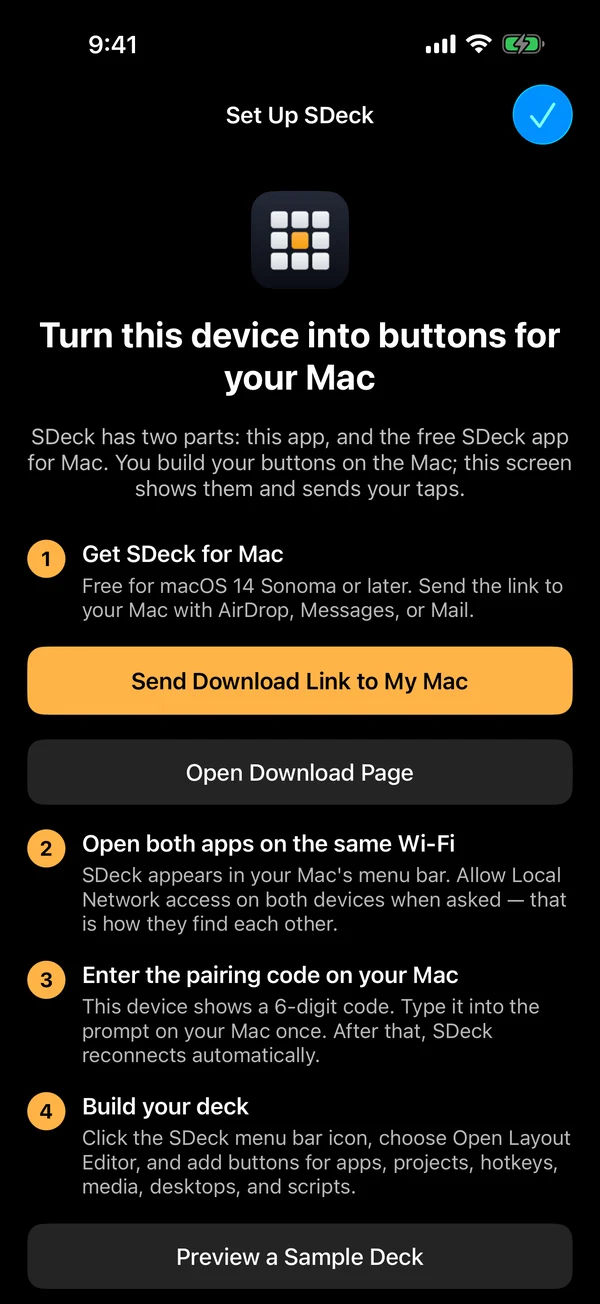
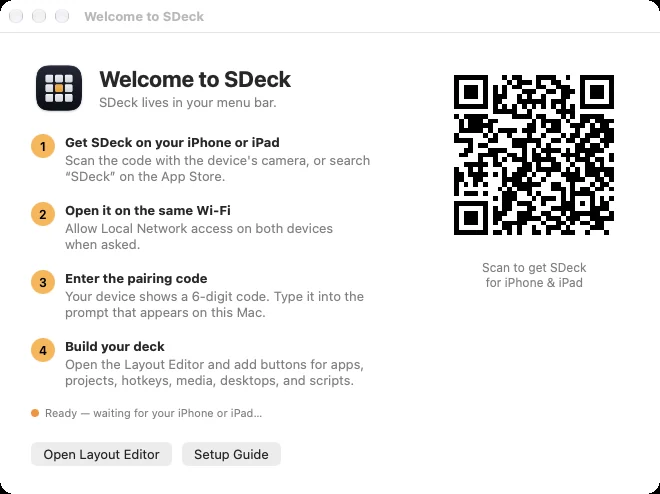
Get SDeck from the App Store on your iPhone or iPad, and download SDeck for Mac from this page. It lives in your menu bar.
Pair once
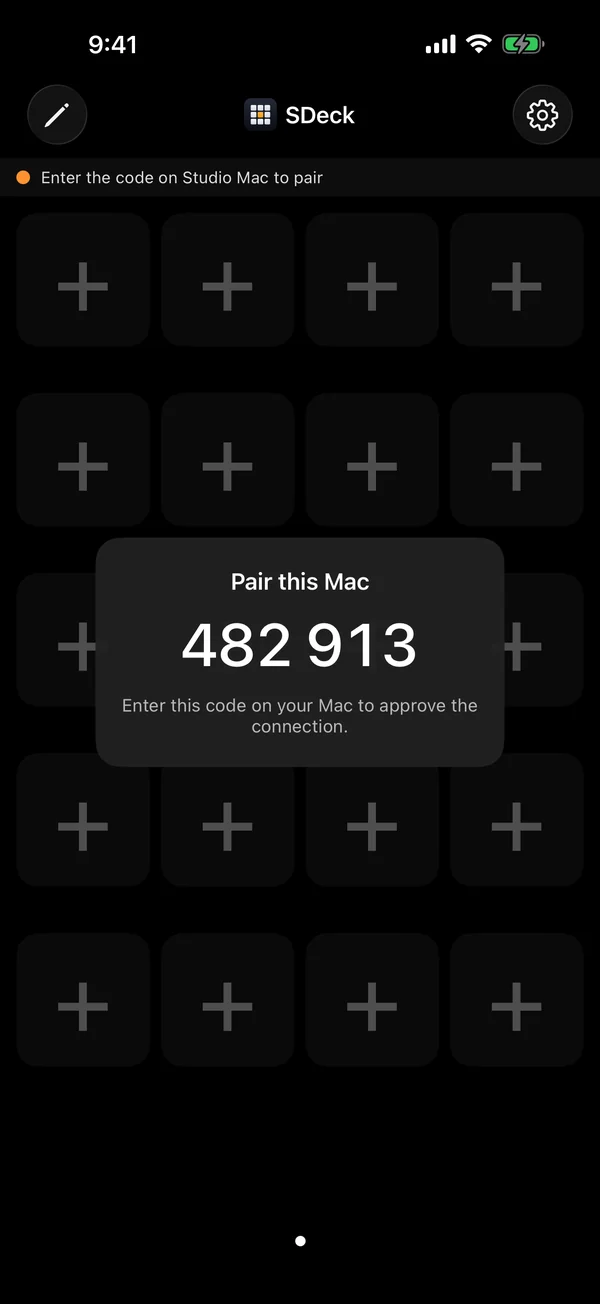
Your device finds your Mac automatically and shows a 6-digit code. Type it on the Mac. From then on it reconnects by itself.
Build your deck
Add buttons in the Mac Layout Editor. Every paired iPhone and iPad updates instantly. Tap a button, and your Mac does it.
The things you do all day.
Twenty buttons per page, as many pages as you like.
Apps
Open any Mac app, or bring it to the front — even from another desktop or when it’s minimized.
Projects & folders
Open a project in Cursor, a folder in Finder, or a Terminal window right where you need it. Open Chrome with a specific profile.
Hotkeys
Send any keyboard shortcut to your Mac, like ⌘⇧4 for a screenshot or your editor’s build command.
Desktops
Jump straight to Mission Control Desktop 1 through 9, or step to the next and previous desktop.
Media, volume & brightness
Play, pause, skip tracks, change volume, mute, and adjust your display brightness.
Scripts
Run AppleScript or shell scripts you write on your Mac. Each new script asks for your approval before it runs.
Design your deck with a real editor.
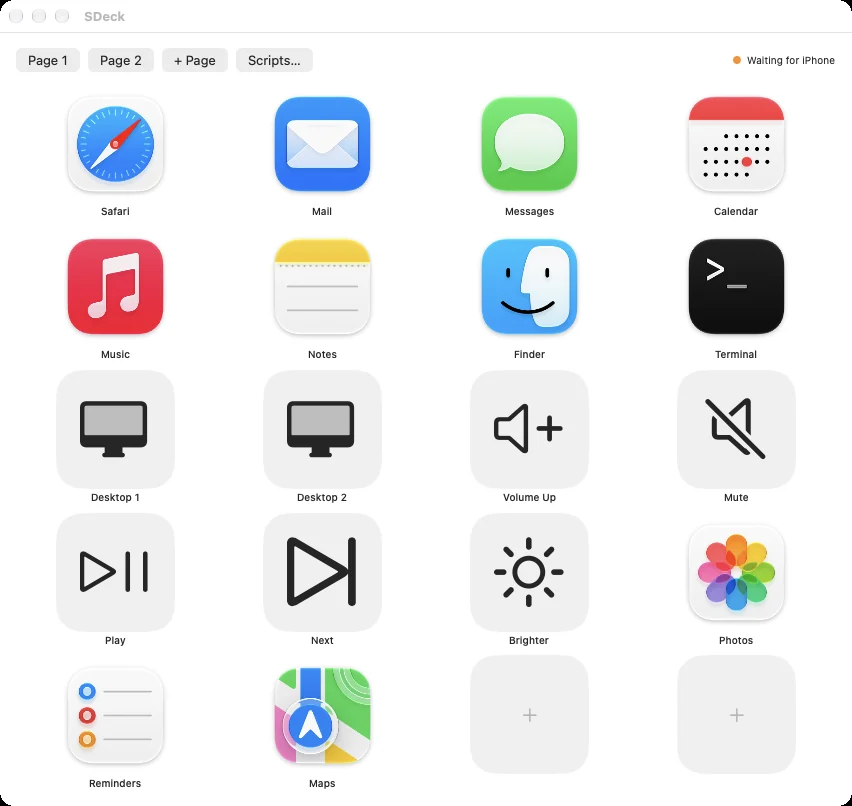
Click the menu bar icon, open the Layout Editor, and pick an app from the list or choose an action. Your iPhone and iPad mirror every change instantly.
- Real app icons pulled from your Mac automatically.
- Multiple pages for work, media, and projects.
- Several devices at once — an iPhone on the desk and an iPad on the stand.
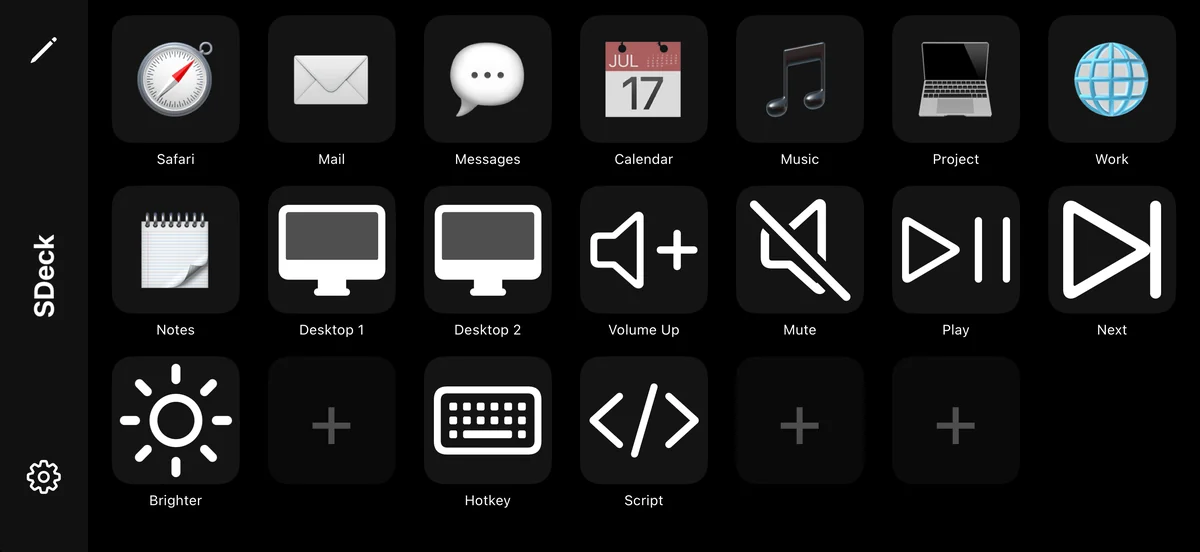
Turn it sideways for twenty buttons at a glance.
Keep the screen awake, plug it in, and lock it into SDeck with Guided Access for a dedicated control panel.
Your taps never leave your Wi-Fi.
- No account, no cloud, no ads, no tracking. SDeck collects no data at all.
- Local network only. Your devices talk directly to your Mac.
- Approved devices only. A new device must show a code that you type on the Mac.
- Scripts stay on your Mac. The iPhone only sends “button tapped” — it can never send code.
Get both apps. Both are free.
You need SDeck on your Mac and on each iPhone or iPad you want to use as a deck.
iPhone & iPad
Requires iOS 15 or iPadOS 15 or later. Works on older devices — a great use for the phone in your drawer.

Mac
Requires macOS 14 Sonoma or later. Universal app for Apple silicon and Intel, signed and notarized by Apple.
Open the disk image and drag SDeck to Applications. Release notes & older versions
On an iPhone? Tap the button to send the link to your Mac.
Questions
Why isn’t the Mac app on the Mac App Store?
Some of SDeck’s best features — running your own scripts, switching desktops, controlling media and brightness — need system access that Mac App Store apps aren’t allowed. So the Mac app is distributed here instead, signed with our Apple Developer ID and notarized by Apple, just like many popular Mac utilities.
Does it work without Wi-Fi or over the internet?
Your iPhone or iPad and your Mac need to be on the same local network. SDeck doesn’t route anything through the internet.
Which permissions does the Mac app ask for?
Local Network (to be found by your devices), Accessibility (only for hotkey buttons and reliably bringing windows forward), and Automation (only when an AppleScript you wrote controls another app). More about permissions.
Can I use more than one iPhone or iPad?
Yes. Pair as many as you like; they all show the same deck and update together.
How much does it cost?
Nothing. Both apps are free, with no ads, subscriptions, or in-app purchases.
My iPhone says “Searching for your Mac”.
Make sure SDeck is running on the Mac (look for its icon in the menu bar), both devices are on the same Wi-Fi, and Local Network access is turned on for SDeck on both. See Support for more fixes.