 SDeck
SDeck
Setup guide
Set up SDeck in about a minute.
You need SDeck on your Mac and on each iPhone or iPad you want to use. Both are free.
1. Install SDeck on your Mac
- Download SDeck for Mac (macOS 14 Sonoma or later).
- Open
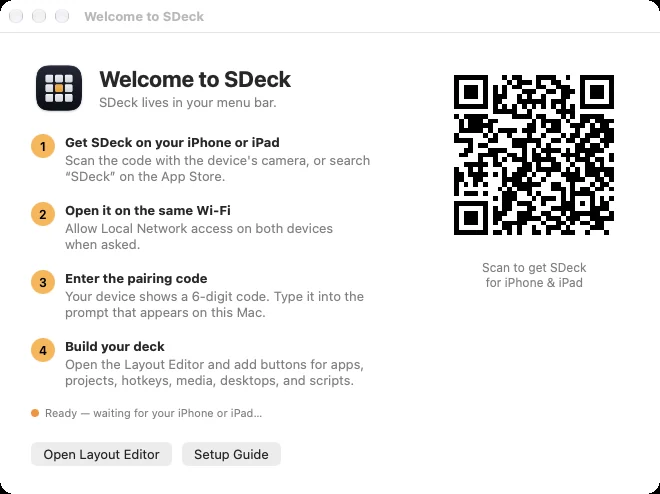
SDeck.dmgand drag SDeck into Applications. - Open SDeck from Applications. A Welcome window appears, and the SDeck icon is added to your menu bar. SDeck has no Dock icon — it lives in the menu bar.
- If macOS asks to allow SDeck to find devices on your local network, click Allow.
2. Install SDeck on your iPhone or iPad
- Get SDeck on the App Store (iOS 15 or later), or scan the QR code in the Mac Welcome window.
- Connect the device to the same Wi-Fi network as your Mac.
- Open SDeck and tap Allow when iOS asks to find devices on your local network.
3. Pair them
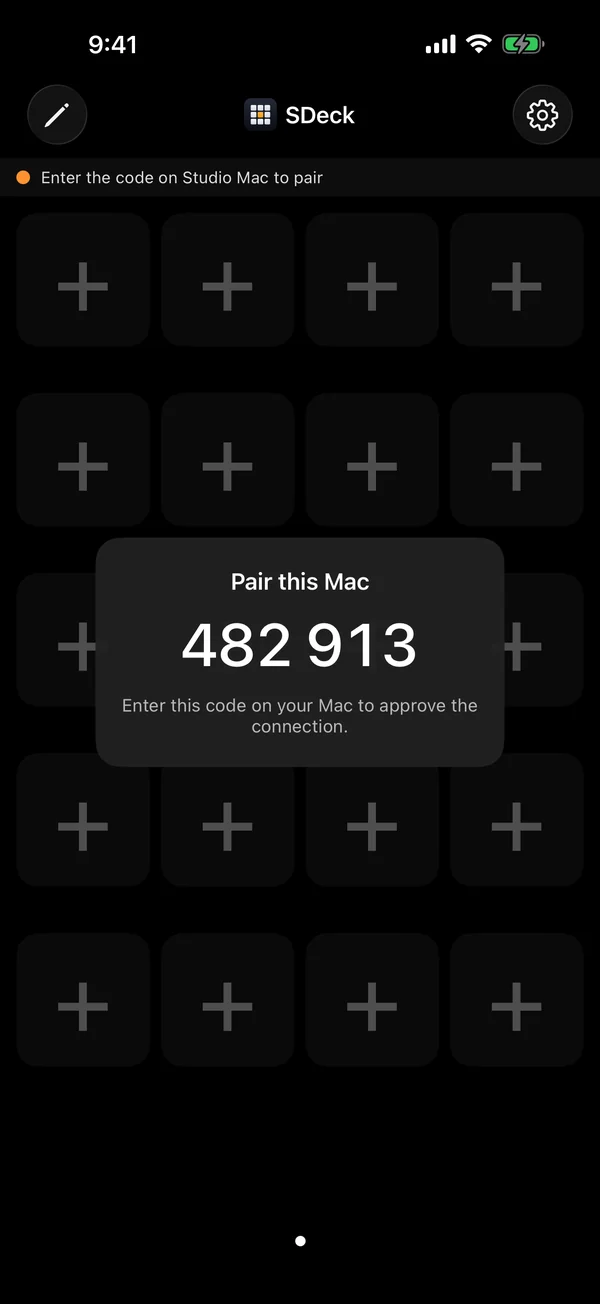
- Your iPhone or iPad finds your Mac and shows a 6-digit code.
- On the Mac, a prompt asks whether the device can connect. Type the code and click Approve.
- That’s it. The device is remembered and reconnects automatically from now on.
4. Build your deck
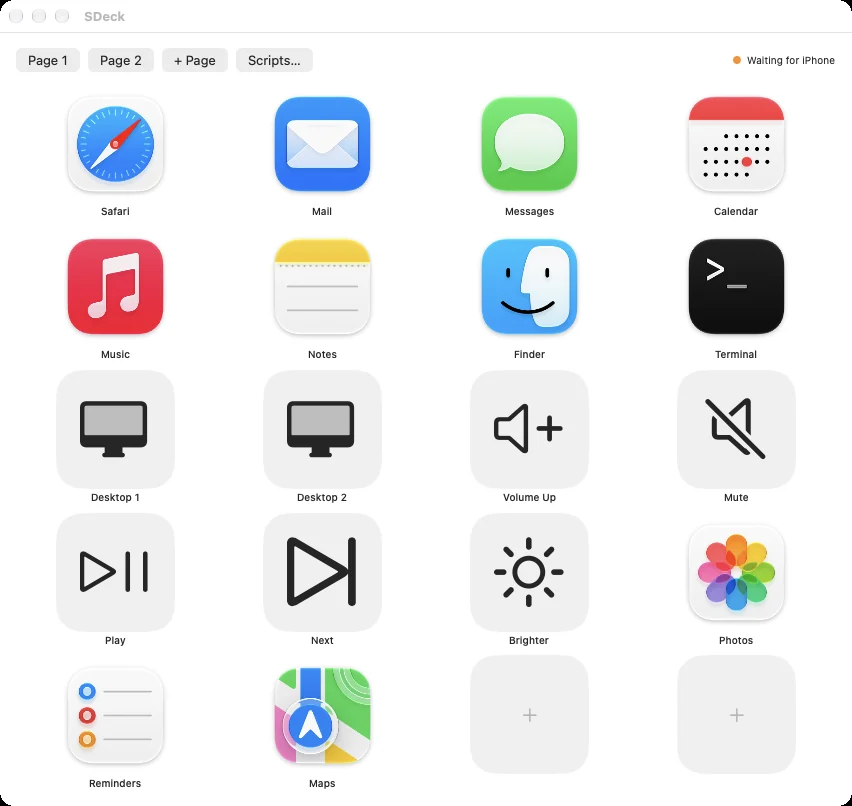
- Click the SDeck icon in the menu bar and choose Open Layout Editor… (or tap the pencil or any empty + slot on your iPhone).
- Click an empty + slot and pick an app from the list — or choose Manual entry for hotkeys, desktops, media, brightness, and scripts.
- Your button appears on every paired device instantly. Tap it to try it.
- Use + Page to add more pages; swipe between them on the device.
Mac permissions
SDeck only asks for what the buttons you create need:
- Local Network — required, so your devices can find the Mac.
- Accessibility — for hotkey buttons, and to reliably bring app windows to the front. Turn it on in System Settings → Privacy & Security → Accessibility → SDeck, then quit and reopen SDeck.
- Automation — macOS asks the first time an AppleScript you wrote controls another app. Click Allow.
Desktop, volume, media, and brightness buttons need no extra permissions.
Make it a dedicated control panel
- SDeck keeps the screen awake while it’s open. Adjust brightness in SDeck’s Settings.
- Plug the device into power.
- For a true kiosk, turn on Settings → Accessibility → Guided Access, open SDeck, and triple-click the side (or Home) button to lock the device into SDeck.
- Turn the device sideways for a wide layout with three rows of seven buttons.
Scripts
In the Layout Editor, click Scripts… to write AppleScript or shell scripts. Scripts are stored only on your Mac. The first time a button runs a new script, SDeck asks you to Deny, Allow Once, or Always Allow. Your iPhone never sends code — only which button was tapped.
Stuck? The Support page covers the most common fixes, or email shay@randombitlogic.com.